
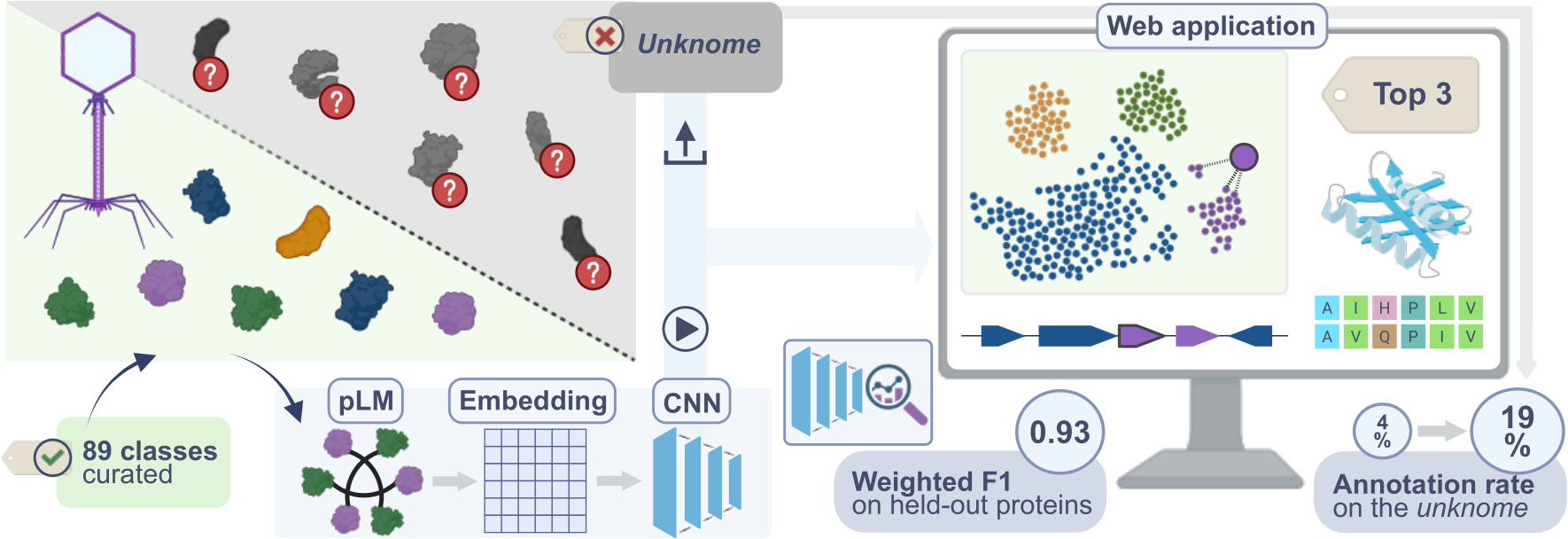


PhageGAP provides:
- protein function prediction using protein language model embeddings and a trained classifier.
- interactive exploration of predictions, embedding similarity, sequence alignments, structures, and genomic context.
- confidence-aware analysis of individual proteins and complete phage proteomes.
How to use PhageGAP
Quick Start
On the Function Prediction page, follow these steps to analyze your protein sequences:
- Paste protein sequences or upload a FASTA file.
- Click
Function Prediction. - Explore the submitted proteins in the
Embedding Landscape. - Select a protein to inspect its prediction and nearest-neighbor sequence, structure, and similarity.
- Optionally add genomic context from a GFF3 file.
- Download the results or save the complete session for later use.
An example session with CDS of the phiKZ phage genome (NC_004629.1) is available via Download Example Session function.
1) Provide Protein Sequences
Enter protein sequences directly or upload a FASTA file. If both are provided, all sequences are combined into one submission.
- Sequences must be provided in FASTA format.
- The protein ID is derived from the FASTA header; remaining text is used as its description.
- Ambiguous amino acids are accepted and converted to
X. - Protein IDs should be unique within a submission.
>prot_001 putative capsid protein
MNNR...
>prot_002 tail fiber protein
MDSK...
2) Run Function Prediction
Click Function Prediction to analyze the submitted proteins.
Predictions are added to the current session and shown as User Data
in the Embedding Landscape.
- Cookie consent must be accepted before classification is enabled.
- Submitted protein sequences are processed for analysis but are not persistently stored by PhageGAP.
- Classification requests are rate-limited. If a request is rejected, wait before submitting again.
3) Explore the Results
The Embedding Landscape places submitted proteins within the
embedding landscape of the PhageGAP reference dataset.
- Reference proteins are colored by their functional class; submitted proteins are shown as
User Data. - Use the legend to show or hide individual functional classes.
- Hover over proteins to inspect their annotation, prediction, and nearest-neighbor information.
- Use the toolbox to zoom, reset the view, or hide reference-identical submitted proteins.
- Set a minimum prediction probability to hide submitted proteins below the selected threshold.
When no protein is selected, the Function Prediction panel summarizes
the highest predicted class probabilities across the submitted proteins, separated
into reference-identical and non-identical proteins.
Select a User Data protein by clicking its point or using the searchable
protein-selection menu. The detail views are synchronized with the current selection.
- The retained nearest reference proteins are connected to the selected protein in the
Embedding Landscape. - Hover over a connection to inspect the corresponding nearest neighbor and its embedding distance.
- Click a connection to inspect a different retained nearest neighbor; the closest neighbor is selected by default.
Function Predictionshows the three highest-ranked functional predictions and their probabilities.Nearest-Neighbor Structureshows the available structure and metadata for the selected nearest neighbor.Nearest-Neighbor Sequence Alignmentshows its pairwise alignment with the submitted protein and reports sequence identity.- Alignment colors distinguish matches, mismatches, insertions, and deletions and are linked to the structure view.
- Use the alignment zoom control and interactive structure controls for detailed inspection.
A structure may not be available for every reference protein.
The sizes of the main visualization panels can be adjusted by dragging the vertical divider.
4) Add Genomic Context
Use Add Genomic Context to upload a
GFF3
file (.gff or .gff3).
- Only
CDSfeatures are displayed. - The GFF protein identifier must match the corresponding FASTA protein ID.
- Matched CDS features are colored according to their predicted functional class.
- Selecting a protein centers the genomic view on its local neighborhood.
- Selecting a CDS in the genomic view selects the corresponding protein in the
Embedding Landscape. - The
Genomic Contextpanel enables you to zoom in and out using scrolling and panning operations, allowing you to inspect individual loci or the complete annotated region.
5) Save, Restore, and Export
Download Resultsexports prediction results as TSV.Download Sessionsaves the complete current analysis as compressed JSON (.json.gz).Reload Sessionrestores a previously saved session for continued exploration or additional predictions.Screenshotexports the current analysis panels as PNG.